
How to Access Military Email
Accessing military email sounds straightforward, but the process involves specific systems, security protocols, and hardware that most civilians have never encountered. Whether you’re active duty, a reservist, or a veteran trying to retrieve old communications, this guide covers every method clearly and practically.
🎯 Understanding Military Email Systems
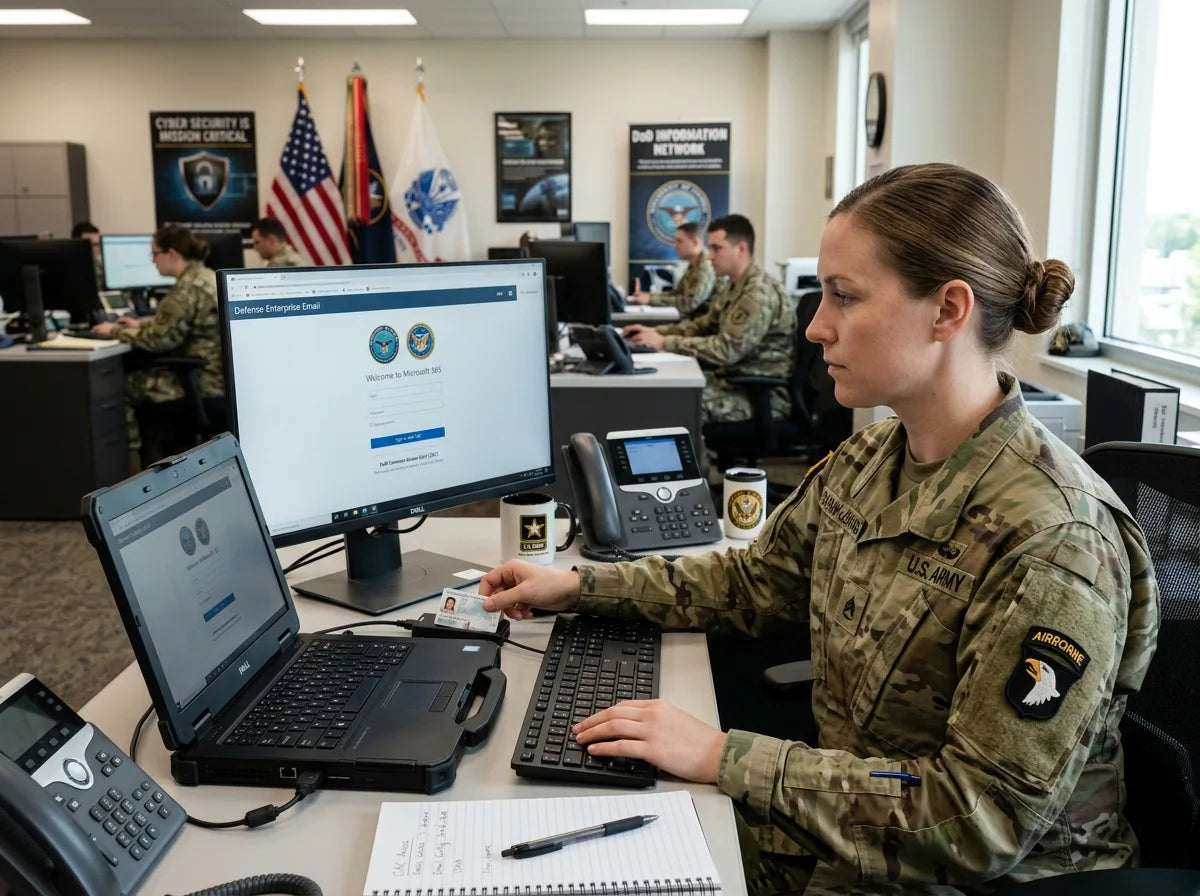
The U.S. military does not use standard commercial email providers like Gmail or Outlook for official communications. Instead, it operates within a secure government infrastructure designed to protect sensitive information. Understanding which system applies to you is the first step before attempting access.
Army Knowledge Online (AKO) was the legacy email platform used for years, but it has largely been replaced. Today, most military branches use Defense Information Systems Agency (DISA) managed platforms, primarily through the DISA enterprise email system, which routes through Microsoft Exchange servers hosted on secure government networks.
Each branch has its own email domain:
- Army: @mail.mil or @us.army.mil
- Navy: @navy.mil
- Air Force: @us.af.mil
- Marine Corps: @usmc.mil
- Coast Guard: @uscg.mil
- Space Force: @spaceforce.mil
Knowing your branch’s domain helps identify which portal or client you need to access your inbox. The method of access also varies depending on whether you’re on a government computer, a personal device, or working remotely.
🔐 What You Need Before Accessing Military Email
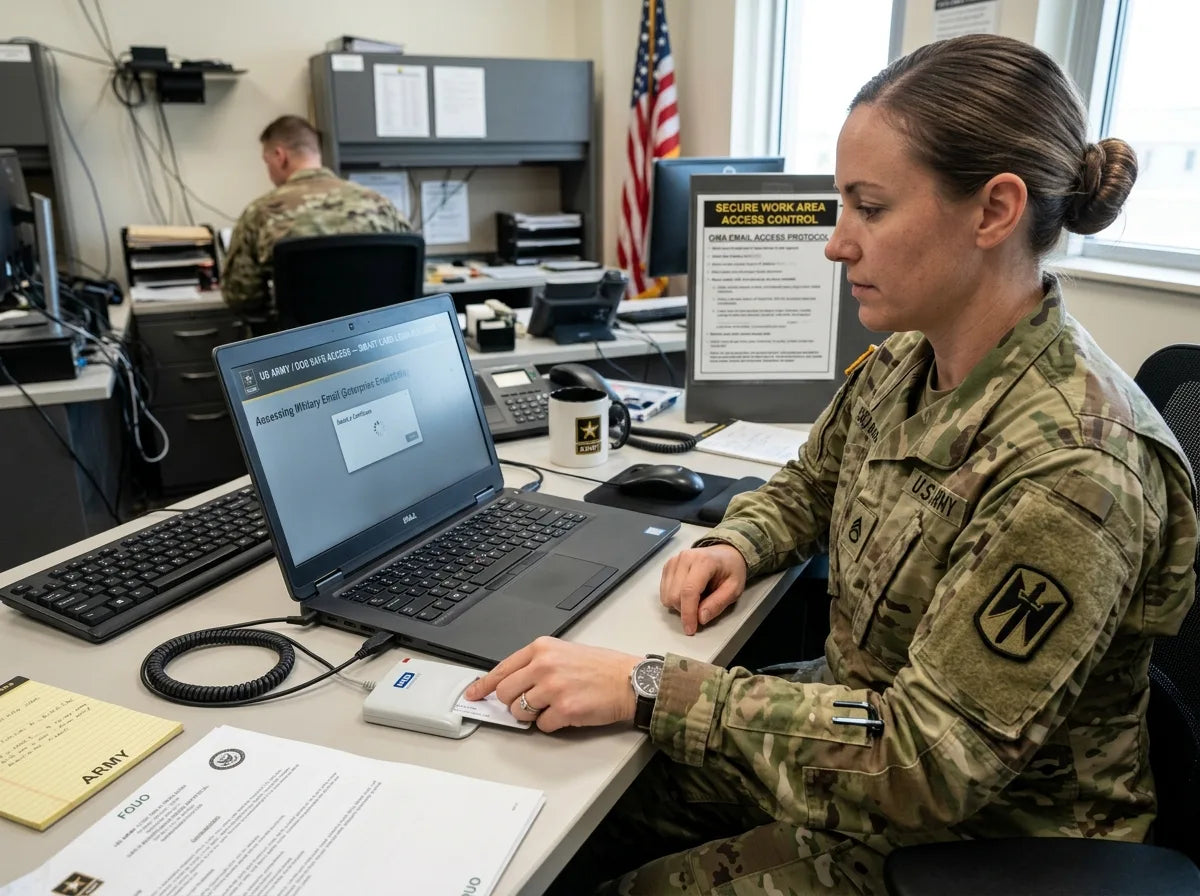
Military email is not publicly accessible. It requires specific credentials and hardware that serve as identity verification. Trying to log in without these will result in immediate access failure.
Common Access Requirements
The most critical requirement is a Common Access Card (CAC). This smart card contains your digital identity, certificates, and authentication data. Without a CAC, accessing military email from most official portals is not possible for active duty personnel.
You will also typically need:
- A CAC card reader (USB or built-in on government computers)
- ActivClient or middleware software installed on your device
- Your CAC PIN (set during card issuance)
- A DoD-approved web browser (Edge or Firefox with specific configurations)
- DoD root certificates installed on your machine
Without these components working together, the authentication process will fail. Many access issues stem from outdated middleware, expired certificates, or missing DoD root certificates rather than actual credential problems.
⚠️ CAC Reader Setup
If you’re accessing from a personal computer, you’ll need to purchase a CAC reader separately. Most compatible readers cost between $15 and $30 and connect via USB. Once plugged in, install the appropriate middleware – ActivClient is standard for Windows, while Mac users often use Thursby’s PKard or the free DoD-provided tools available through militarycac.com, a widely used community resource for setup guides.
💻 How to Access Military Email on a Government Computer
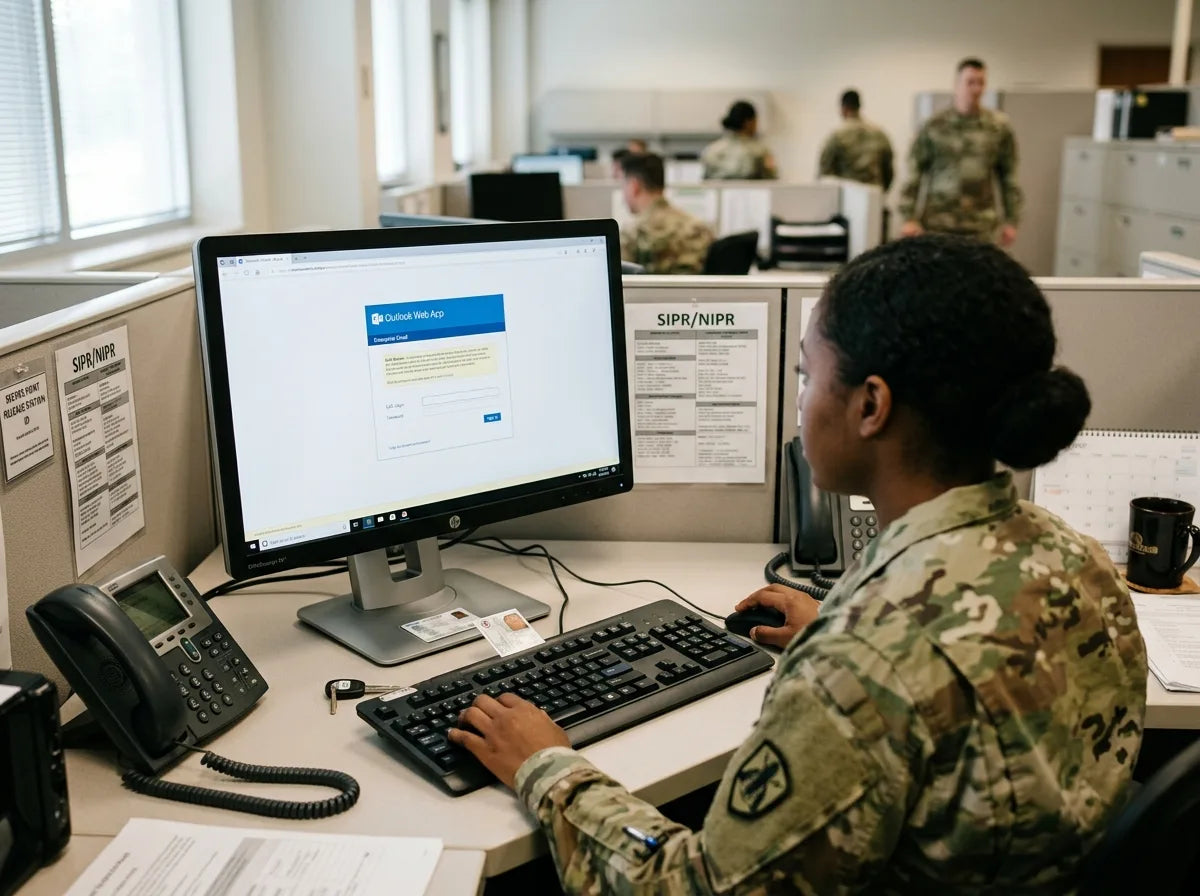
On a government-issued computer already configured for DoD use, the process is relatively simple. These machines come pre-loaded with the necessary certificates, middleware, and browser settings.
Insert your CAC into the reader, open your browser, and navigate to your branch’s webmail portal. You will be prompted to select your certificate and enter your PIN. Once authenticated, your inbox loads through Outlook Web Access (OWA) or a similar interface depending on your branch’s configuration.
The most commonly used portal for many service members is webmail.apps.mil, which serves as the enterprise email access point for DoD personnel. Some commands use branch-specific portals, so confirm with your unit’s IT support if you’re unsure which URL to use.
🌐 Accessing Military Email Remotely or from a Personal Device

Remote access is where most service members run into complications. The DoD has expanded options for accessing military email outside of government networks, but the requirements remain strict.
Using Outlook Web Access (OWA)
OWA is the primary browser-based method. Navigate to your branch’s OWA portal, insert your CAC, select the correct certificate when prompted, and enter your PIN. This works on personal computers as long as your CAC reader, middleware, and DoD certificates are properly configured.
If you encounter certificate errors in your browser, you likely need to install the DoD root certificates. These are available through the DoD Cyber Exchange website and must be installed in your browser’s certificate store or your operating system’s trusted root authority list.
Using Outlook Desktop Client
Some service members configure the full Outlook desktop application to sync with their military Exchange account. This requires your organization’s Exchange server address, which your unit’s IT department can provide. Authentication still goes through CAC-based certificates rather than a standard username and password.
Mobile Access
Mobile access to military email has improved significantly. The DoD365 platform, which migrated many military users to a Microsoft 365 environment, supports mobile access through the Microsoft Outlook app with multi-factor authentication. Enrollment typically requires your CAC and an initial setup process completed on a government computer or through your unit’s IT support.
| Access Method | CAC Required | Best For | Complexity |
|---|---|---|---|
| Government Computer (OWA) | ✅ Yes | On-base access | Low |
| Personal Computer (OWA) | ✅ Yes | Remote work | Medium |
| Outlook Desktop Client | ✅ Yes | Regular remote users | Medium-High |
| DoD365 Mobile App | ⚠️ Initial setup only | On-the-go access | Medium |
🔧 Troubleshooting Common Military Email Access Problems
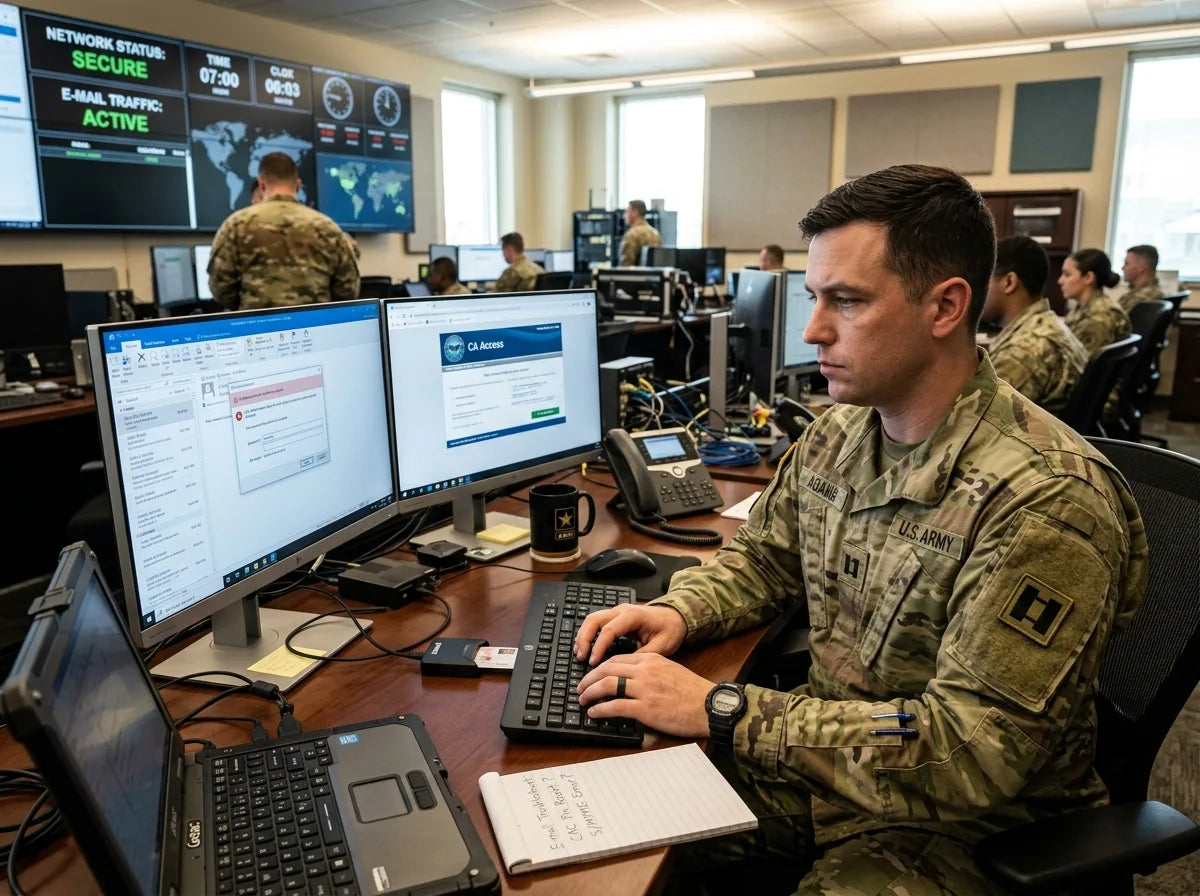
Access issues are extremely common, especially for reservists and those working from personal devices. Most problems fall into a few predictable categories, and understanding them saves significant frustration.
If you’re interested in broader aspects of military service commitments, it’s worth reading about how long you have to be in the military, which provides context on service obligations that affect your email account status and access duration.
Certificate Errors
The most frequent issue is a certificate error when navigating to the webmail portal. This usually means your browser does not trust the DoD’s certificate chain. Install the DoD root certificates from the official DoD Cyber Exchange, then restart your browser. In Firefox, certificates must be imported directly into the browser’s certificate manager rather than the operating system store.
CAC Not Recognized
If your CAC reader is plugged in but the system does not detect your card, check that your middleware is installed and running. On Windows, ActivClient should appear in your system tray. Try removing and reinserting the card. If the problem persists, test with a different USB port or a different reader to isolate whether the issue is hardware or software.
Locked CAC PIN
After three incorrect PIN attempts, your CAC locks. You cannot unlock it remotely. You must visit a RAPIDS (Real-Time Automated Personnel Identification System) site or your base’s ID card office to have the PIN reset or the card replaced. Locate the nearest RAPIDS site through the official DMDC website.
Expired Certificates on the CAC
CAC certificates expire, typically every three years. If your certificates are expired, you’ll need a new CAC issued at a RAPIDS site. Your card may still physically work for base access but will fail for email authentication. Check your certificate expiration dates through the ActivClient interface or your operating system’s certificate viewer.
📋 Accessing Military Email as a Veteran or Separated Service Member

Once you separate from the military, your access to active duty email systems is revoked. However, veterans have alternative options for government-related communications.
The VA.gov platform provides veterans with a login system using ID.me or Login.gov credentials, which do not require a CAC. This handles VA communications but is separate from military service email. If you need records or communications from your time in service, your best route is submitting a request through the National Personnel Records Center (NPRC) or working with your branch’s records office.
Some veterans retain a CAC if they work as DoD contractors or civilian employees, in which case the same access methods described above apply. Contractor CACs are issued through the same RAPIDS system and function identically for email access purposes.
✅ Tips for Smooth Military Email Access
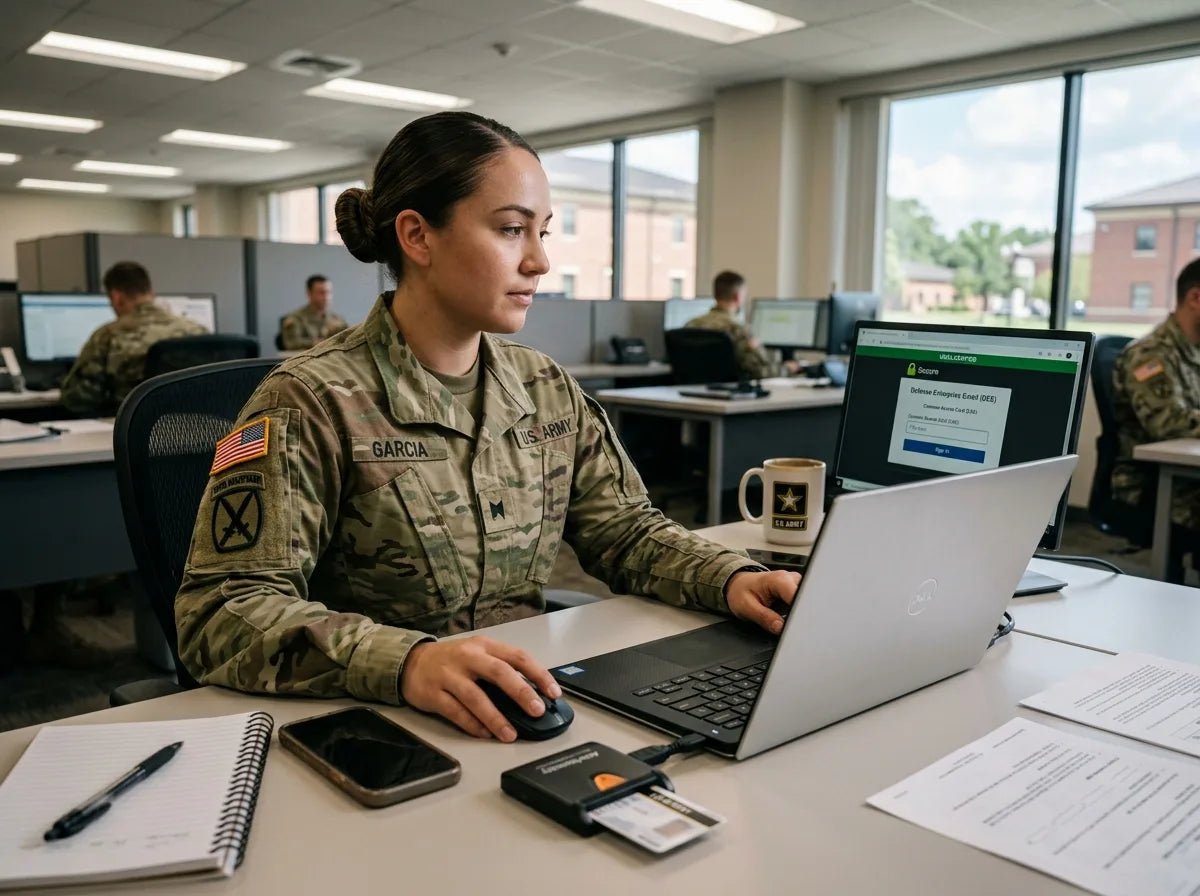
Keeping your access working reliably comes down to a few consistent habits. Technical issues rarely appear at convenient times, so proactive maintenance matters.
- Check your CAC certificate expiration date every six months
- Keep your middleware and DoD certificate packages updated
- Save your unit IT support contact information before you need it
- Test remote access from your personal device before a deployment or remote assignment
- Use Microsoft Edge or a properly configured Firefox for best CAC compatibility
- Enroll in DoD365 mobile access while you still have easy access to a government computer
For those considering a long-term military career and wondering about specialized roles that come with unique communication and operational requirements, learning about how to become a military pilot offers a detailed look at one of the most demanding career paths in the armed forces.
Conclusion
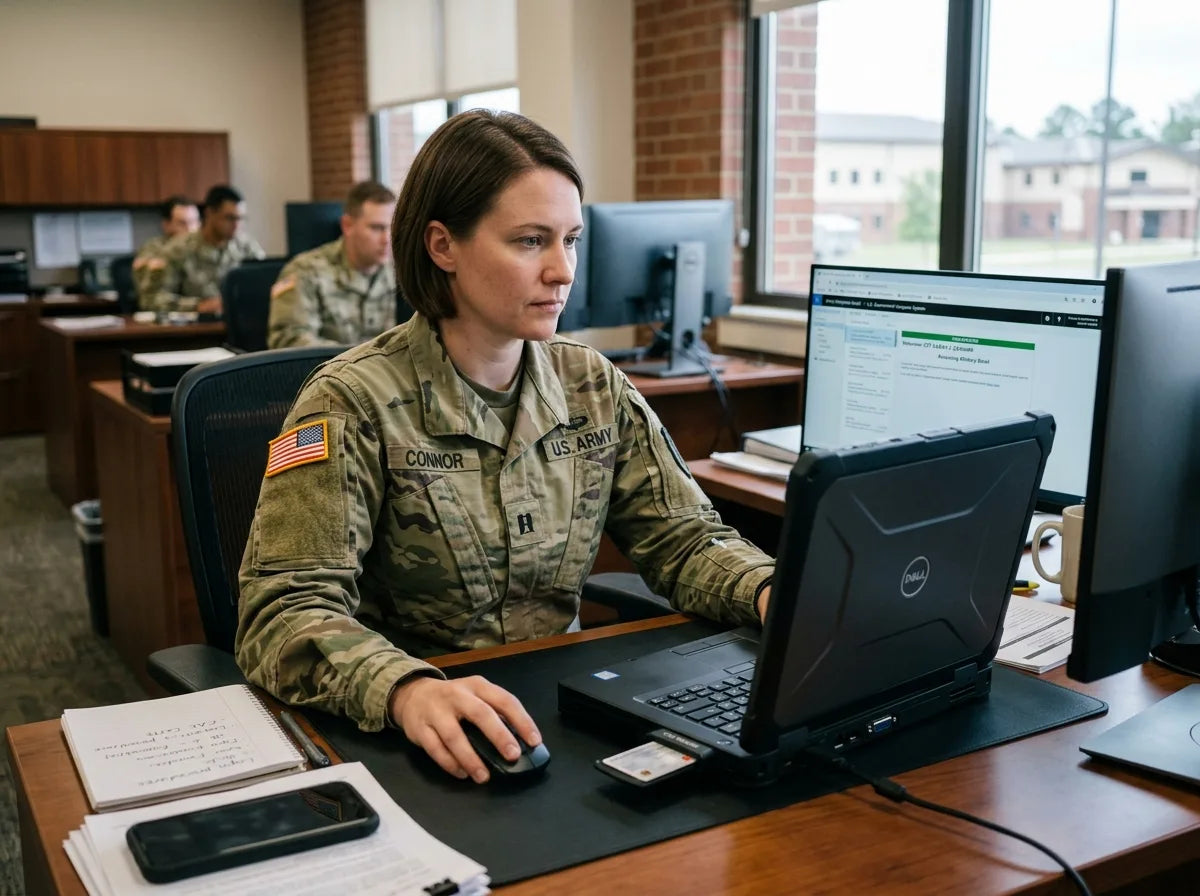
Accessing military email requires the right hardware, software, and credentials working together. A CAC, a compatible reader, updated middleware, and DoD root certificates cover the majority of what you need. Most access problems are solvable through certificate updates or middleware reinstallation. When in doubt, your unit’s IT support desk is your fastest path to resolution – document your setup now so remote access works when you actually need it.